
Inventory accuracy is one of those areas that quietly determines whether not operations run smoothly. Inaccurate inventory numbers will throw off your purchasing and fulfillment processes, resulting in unclear inventory valuation. That’s what the NetSuite Inventory Count feature helps you avoid. Let’s take a look.
Overview of NetSuite Inventory Count
NetSuite’s Inventory Count feature supports structured physical counts, whether you perform full counts or targeted cycle counts. When configured properly, it allows you to generate count records, compare counted quantities to system quantities, and create controlled adjustments. Rather than directly adjusting inventory balances, users first create an Inventory Count record. That record becomes the workspace for entering physical quantities and reviewing variances before any adjustments are posted.
Process
At a high level, the process looks like this:
- Create an Inventory Count record (filtered by location and optional criteria).
- NetSuite snapshots the current on-hand quantities.
- Enter the physically counted quantities.
- Review calculated variances.
- Approve and post the resulting Inventory Adjustment.
Characteristics
The following characteristics define how Inventory Count works:
- Location-Specific: Counts are always performed per location.
- Snapshot-Based: The system captures on-hand quantity at the time the count is created.
- Variance-Driven: Adjustments are calculated as the difference between system quantity and entered count.
- Approval-Oriented: Adjustments can follow an approval workflow if configured.
This structure protects data integrity by preventing immediate, uncontrolled changes to inventory balances.
Setting Up Inventory Count
A smooth count process begins with proper configuration. That includes enabling necessary features, setting up items, choosing the right count method, and understanding how counts are generated.
Features and Preferences
To use Inventory Count, you will have to enable the Inventory Count feature, which you can find on the Items & Inventory tab of Enable Features. If you plan to use Inventory Count for lot and serialized items, you will also need to enable the Advanced Bin/Numbered Inventory Management feature.
After enabling the feature, navigate to Setup > Accounting > Accounting Preferences, and go to the Items/Transactions subtab. Here, you’ll want to set a couple preferences for this feature. The preference Default Inventory Count Account allows you to choose an expense account where you will post inventory variances. The preference Recalculate Snapshot on Inventory Count Reject will prompt the system to take a new inventory quantities snapshot if an inventory count is rejected.
Calculated Inventory Counts
Two Types of Inventory Counts
There are two types of inventory counts in NetSuite: calculated and manual. But the idea of a calculated inventory count can be a bit misleading. This makes it sound like the system utilizes a complex algorithm that accounts for the movement of inventory in your warehouse and comes up with its best calculated sum for an item. That is not the case. The only calculated thing in a calculated inventory count is the schedule that prompts you to perform a new inventory count. But at the end of the day, you’ll still be on the floor in your warehouse with a scanner and a clipboard.
Creating a Calculated Inventory Count
In order to calculate inventory count schedules for your items, you’ll need to configure your items first. To do that, open an item record in Edit mode and scroll down to the Location subtab on the Purchasing/Inventory tab. Locate the Next Count Date and Count Interval columns. Here, you can instruct the system when to prompt a new inventory count for this item, as well as how frequently afterward new inventory counts should be made. Note that you will need to specify this information for each of your locations that carries this item.
Working with the Calculated Inventory Count
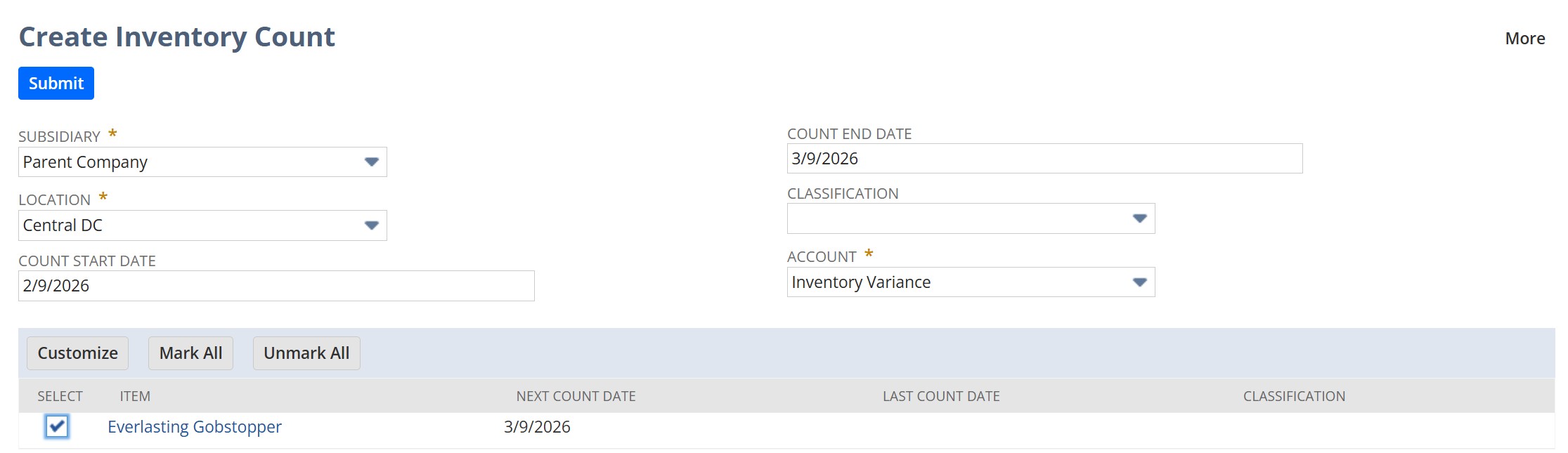
Now that you’ve configured your item records, the system will calculate when you should complete a new inventory count based on the schedule you provided. To see a list of all items that are eligible for an inventory count, navigate to Transactions > Inventory > Create Inventory Count. Enter the correct subsidiary, location, and account, and NetSuite will pull up the list of eligible items. You’ll just need to select all the items you plan to count, and hit submit. This will generate an inventory count record.
Manual Inventory Counts
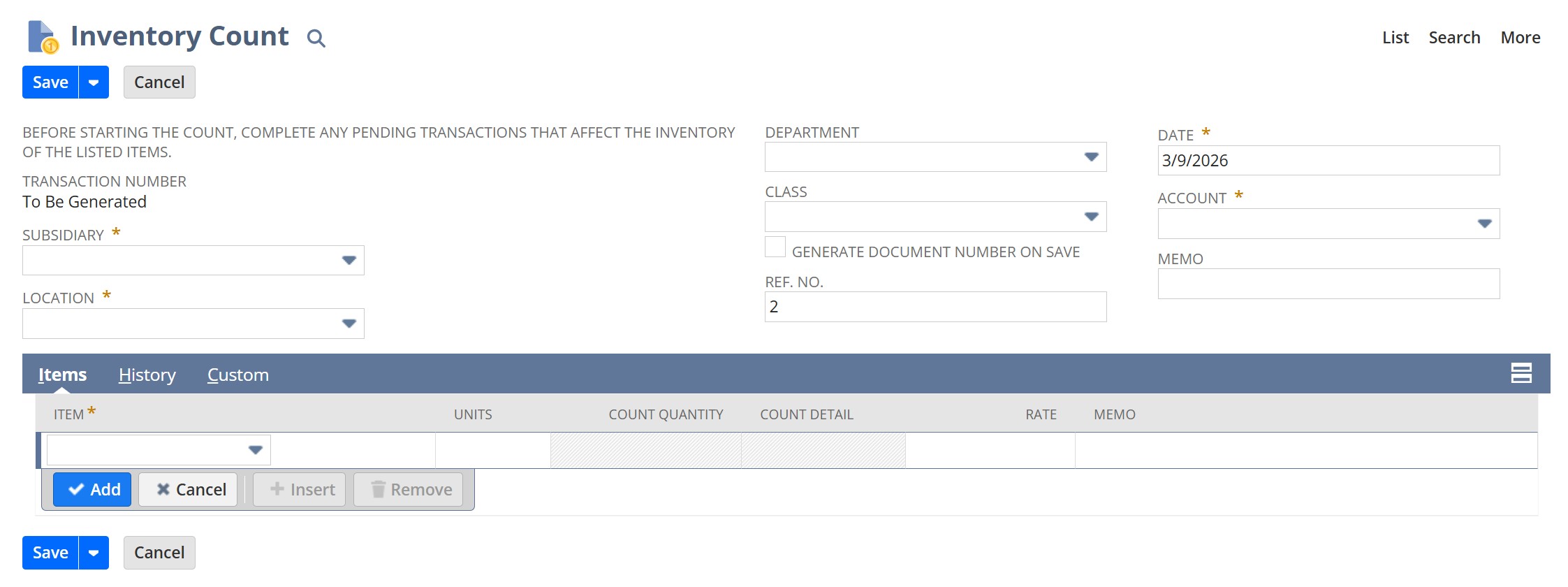
Alternatively, you may wish to do manual inventory counts. Again, this simply means that you have direct control over which items are included in a specific counting event, rather than being tied to the inventory count schedules. On the Inventory Count page, select the subsidiary, location, and expense account used for inventory variances. Then, add the items you plan to include on this pass through your inventory. Save the record.
Starting an Inventory Count
Believe it or not, creating an inventory count record is just the beginning. You still need to get around to the actual counting part of an inventory count. On one of your open inventory count records (no matter whether it was created by a schedule or manually), hit the Start Count button at the top. Selecting “Start Count” prompts the system to take a snapshot of your existing on-hand inventory. Then, you can complete your physical count of the items listed and edit the Inventory Count record to include those quantities. When you’ve entered all the counted amounts for each item in the list, hit the Complete Count button at the top.
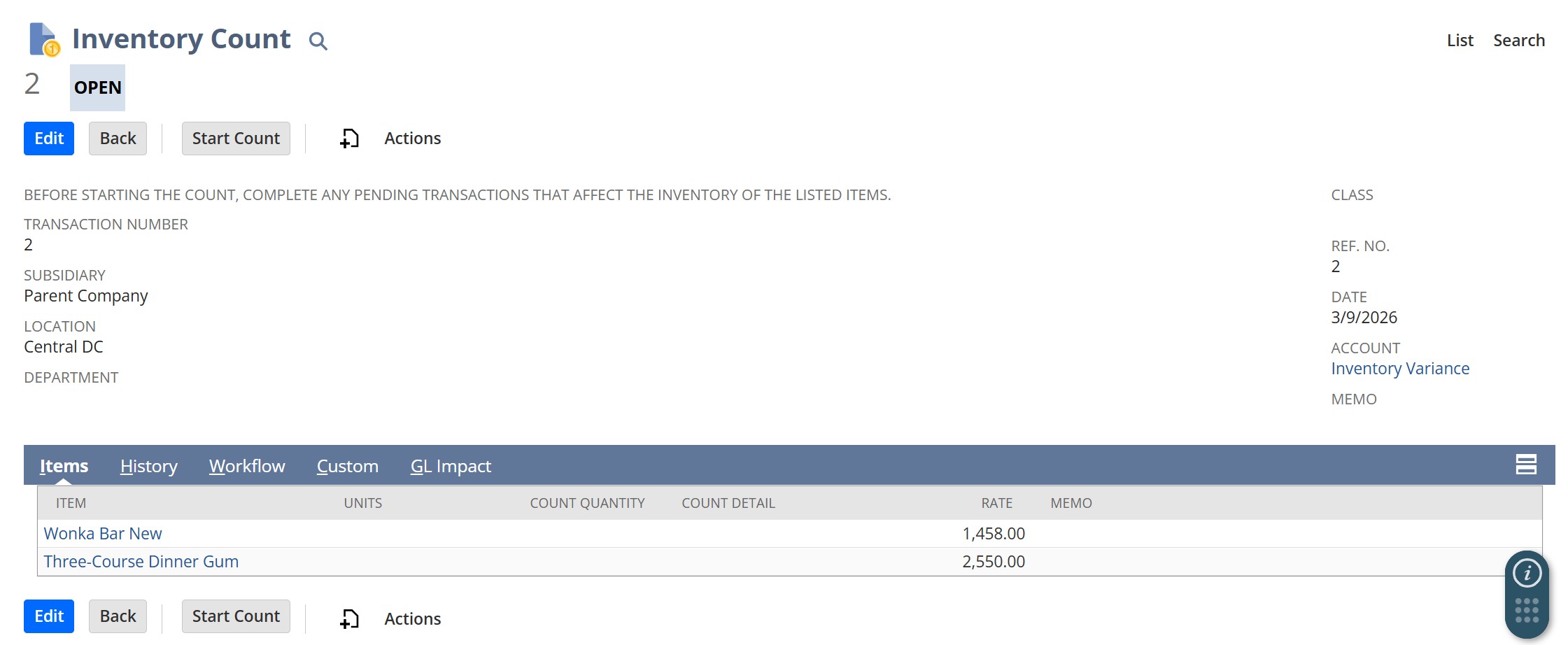
After quantities are entered and the Inventory Count record completed and approved, the system calculates variances and prepares an Inventory Adjustment for approval and posting.
Conclusion
And those are your two options for performing inventory counts! Keeping your inventory accurate impacts financial reporting, purchasing decisions, and ultimately customer fulfillment. With the NetSuite Inventory Count feature, you have the tools you need to ensure your inventory quantities stay up-to-date.