NetSuite Personalized Catalog Views

NetSuite for Administrators

Did you know that you can control which customers are able to see and purchase certain items on your SuiteCommerce webstore? Using the NetSuite Personalized Catalog Views feature, you can group items into catalog segments and assign customer groups to the appropriate segment. This is especially helpful for companies that have VIP types of customers or limited high-value items.

How Does PCV Work?

How does PCV work? Here are just a few of the main functionalities that Personalized Catalog Views provides:
  • Create unique customer groups
  • Segment items based on set criteria or by manual selection
  • Connect customer groups to item segments
  • Manage whether customers can view items, view prices, make purchases, or all three

Setting Up Personalized Catalog Views

Let’s take a quick look at how to set up and use this feature.

Enable the Feature

Setting up Personalized Catalog Views, or PCV, starts with enabling the feature. You’ll find that feature in Enable Features under the Items section of the Items & Inventory tab. You should also note that PCV is not compatible with either SuiteCommerce InStore or Intelligent Recommendations. If you use either of those features, you will not be able to pair them with PCV.

Map Your Personalized Catalog Views

Before you start creating records in NetSuite, map out what you need to accomplish with PCV. What customer categories will you use? Then, decide what criteria will determine which members are added to which categories. Once you have figured out how you want your customer categories to work, take a look at your items. How many segments do you need to create, and which items belong in which segments? Further, which customers groups should have access to which item segments?

Create Item Collections

Now that you’ve mapped the way you want your PCV to work, you’re ready to create item collections. Start by navigating to Lists > Accounting > Item Collections > New. On this page, name the item collection. Then select either “Static” or “Dynamic.” A static item collection will consist of specific items you add to the collection, while a dynamic item collection is based on a saved search. 
NetSuite New Item Collection

If you choose the static option, select the “Add Multiple” button to open the pop up window where you will add items to this collection. When you’re finished, save the record. You can make additional item collections as needed.

NetSuite Add Items to Collection

Create Customer Groups

Now that you have an item collection, you can create customer groups. Navigate to Lists > Relationships > Groups > New. As with the item collection, you can create either a static group based off of manual entry or a dynamic group based on a saved search. Be sure that Customer is selected in the dropdown for the kind of members you want to include in the group. Then, hit the Continue button.
Create Customer Group in NetSuite

As an example, let’s creating a static group. On this page, you’ll enter the name for this customer group and designate the owner of the group. You can also restrict editing this group to just the owner if necessary. Then, add customers under the Members tab. You can add customers individually, in bulk using the “Add Multiple” button, or via a simple search that pulls all customers into the group who meet certain criteria. Note that adding customers to a static group via a simple search does not make the group members a dynamic list; if you want members to update automatically based on criteria, create a dynamic group and use a saved search. When you’re finished, save the page.

Create Static Customer Group

Define Item Segment Visibility

Next, you’re ready to define your item segment visibility. This is how you connect your item collections with your customer groups, providing those customers with special access to specific item collections. Start by navigating to Commerce > Marketing > Customer Segments Manager. If the page is not visible in the dropdown, search for “Customer Segments Manager” in the global search bar to pull it up.
Customer Segments Manager Page

On this page, select the Add Item Segments button. You’ll find any item segments you created on the lefthand side of the pop up; move the desired ones to the right and select Add. Note that if you use commerce categories on your website, you’ll also have the option of creating a customer segment based on them.
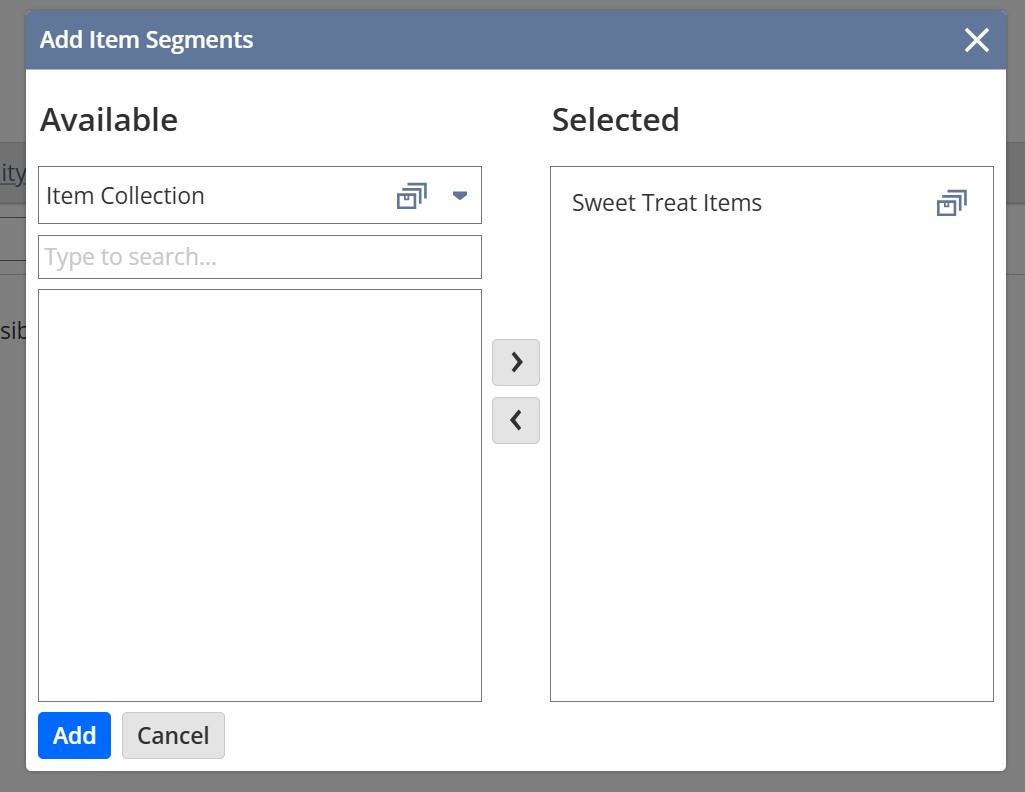
Choose Item Segment on Customer Segments Manager

Then, you’ll be able to map your customer groups and item segments together. You’ll have the option of displaying those items fully to the selected customer group, disabling the option to purchase the items directly, and also hiding the price of the items in addition to disabling the purchasing option. You can also add multiple customer groups to a single item segment as needed. When you’ve made the necessary selections, save the page.

Map Item Segments to Customers

Conclusion

The Personalized Catalog Views feature allows you to have greater control over the visibility of items on your SuiteCommerce webstore. At SuiteRep, we focus on all things NetSuite so you can focus on better business results. Contact us today to learn how we can partner with you.

Get New Articles Directly in Your Inbox

Are you new here? We typically post one blog a week, which we will deliver to your inbox when you subscribe to the SuiteRep newsletter.